
.png)
Build powerful document parsers with natural language in Sensible's new visual editor
We're excited to announce our new visual editor. This new interface automatically creates intelligent, LLM-powered document parsers that you can modify without any coding required. Under the hood the visual editor generates standard SenseML that you can extend for advanced functionality like conditional execution, in-pipeline compute, and output schema manipulation.
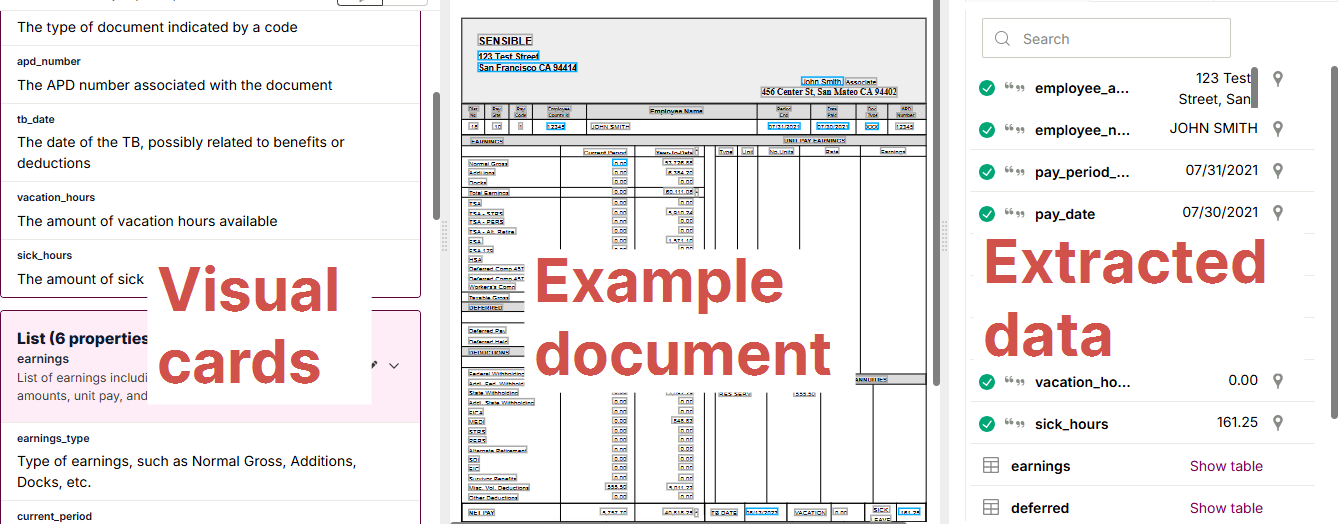
When you sign up for an account or create a new document type, Sensible automatically creates an initial parser that pulls the most relevant information from your sample document. The parser settings are represented by cards that show exactly what data is being extracted and how:
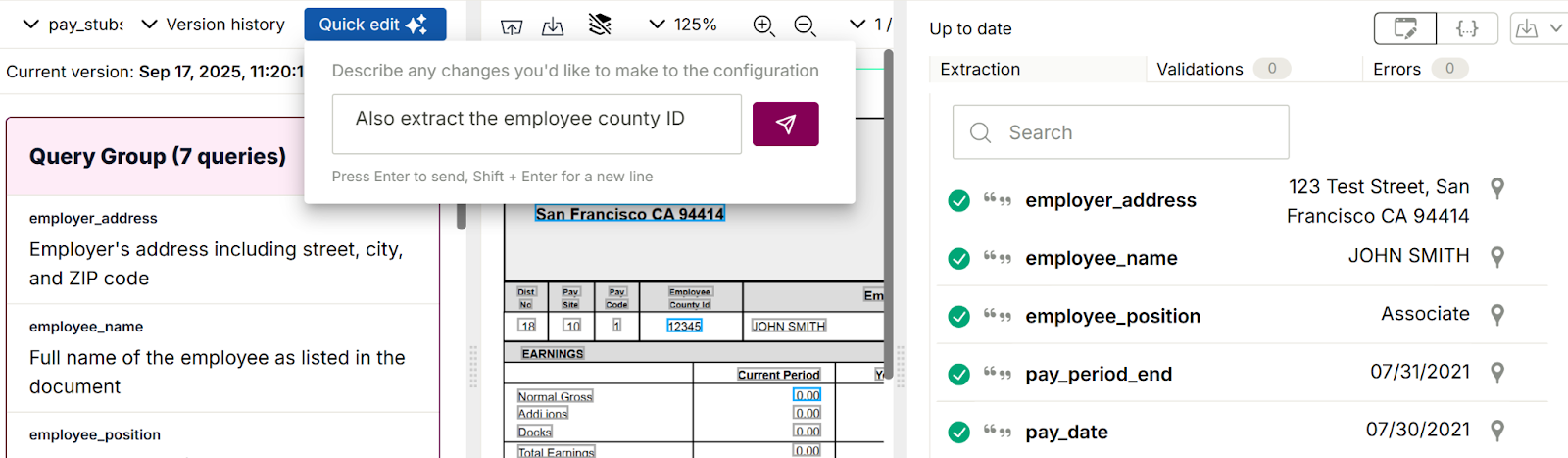
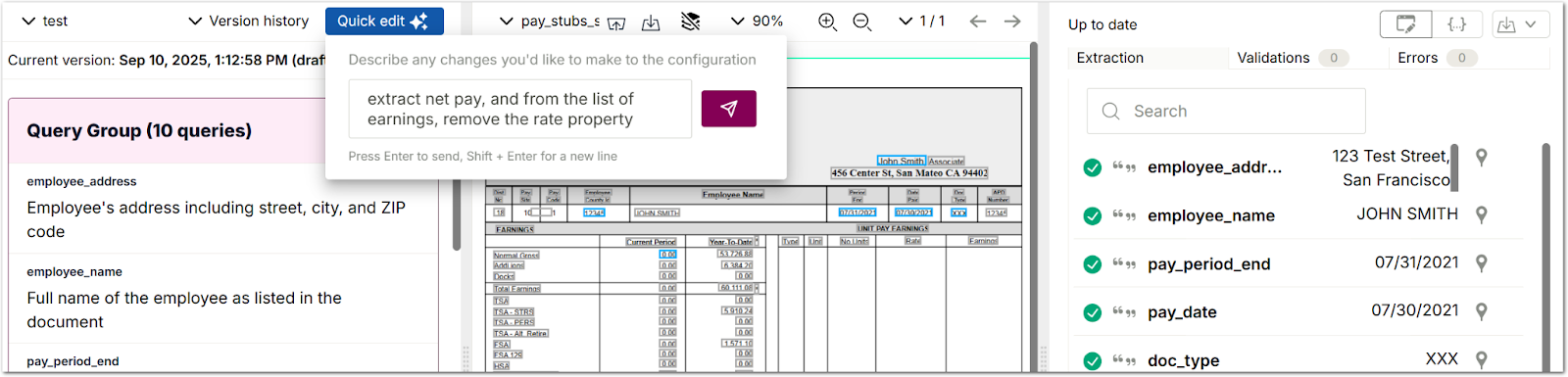
To make adjustments, click the Quick edit ✨ button and describe the changes you'd like to make in plain English—"also capture middle names in the employee field" or "extract the net amount not just gross amount"—and the system updates your parser automatically:
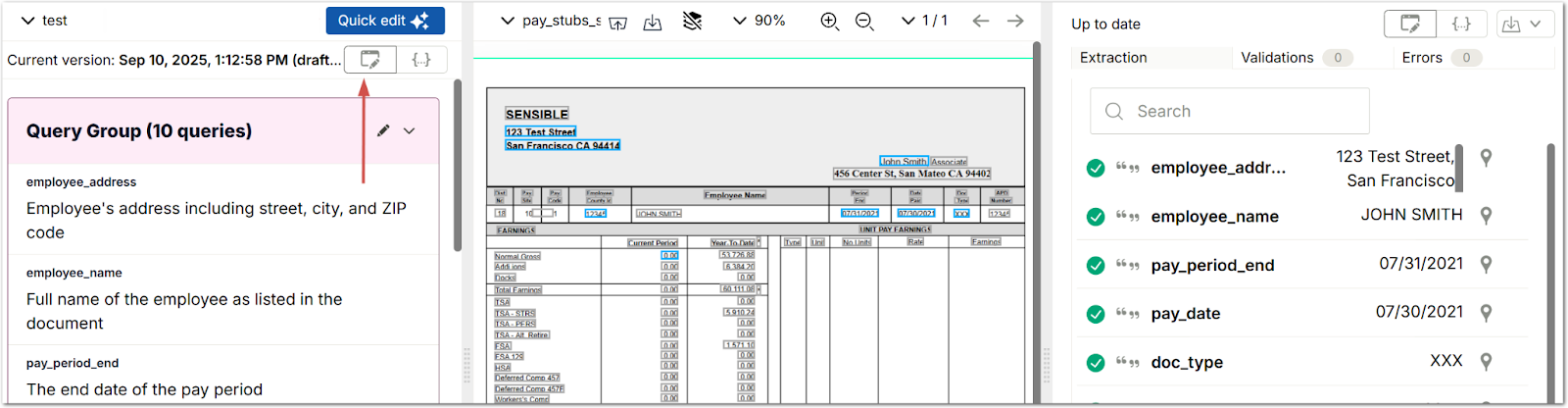
To directly edit the cards, click the pencil icon at the top of the cards. You can also add cards using the buttons at the bottom of the card list.
If you're new to Sensible you can generate working document parsers in seconds with zero technical knowledge. Experienced users can get a head start with the visual editor then dive into manual SenseML editing whenever they need advanced functionality. Compared to a JSON-only approach, the visual editor makes document extraction accessible to entire teams, not just developers, while maintaining the full power and flexibility that technical users expect.
Getting started with visual extraction
The visual editor is available now in the Sensible app. To start using visual cards:
- Click the Document types tab and click New document type.
- Upload a sample document and click Create.
This populates the left field with an LLM-based parser, or extraction “config”, and populates the right pane with extracted data:
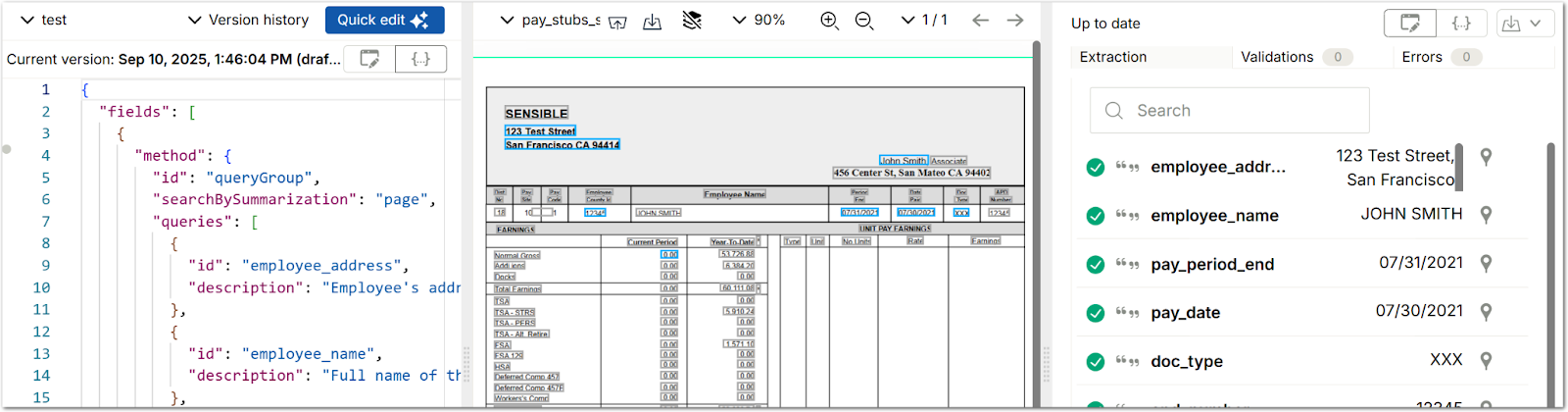
3. Switch to the Visual editor to see your LLM extraction prompts as cards:
Quick edit: modify extractions with natural language
Once you’ve got an auto-generated extraction config, use the Quick edit button to describe changes you’d like to make to the document extraction in everyday language. For example:
- "add a field to extract the customer's phone number"
- "update the field that extracts the customer's phone number to strip dashes and parentheses"
- "add a field to extract the due date from invoices"
- "from the list of earnings, remove the rate property"
For example, you could modify payroll extraction with the following instructions: “extract net pay, and from the list of earnings, remove the rate property”:
Review diff and approve quick edits
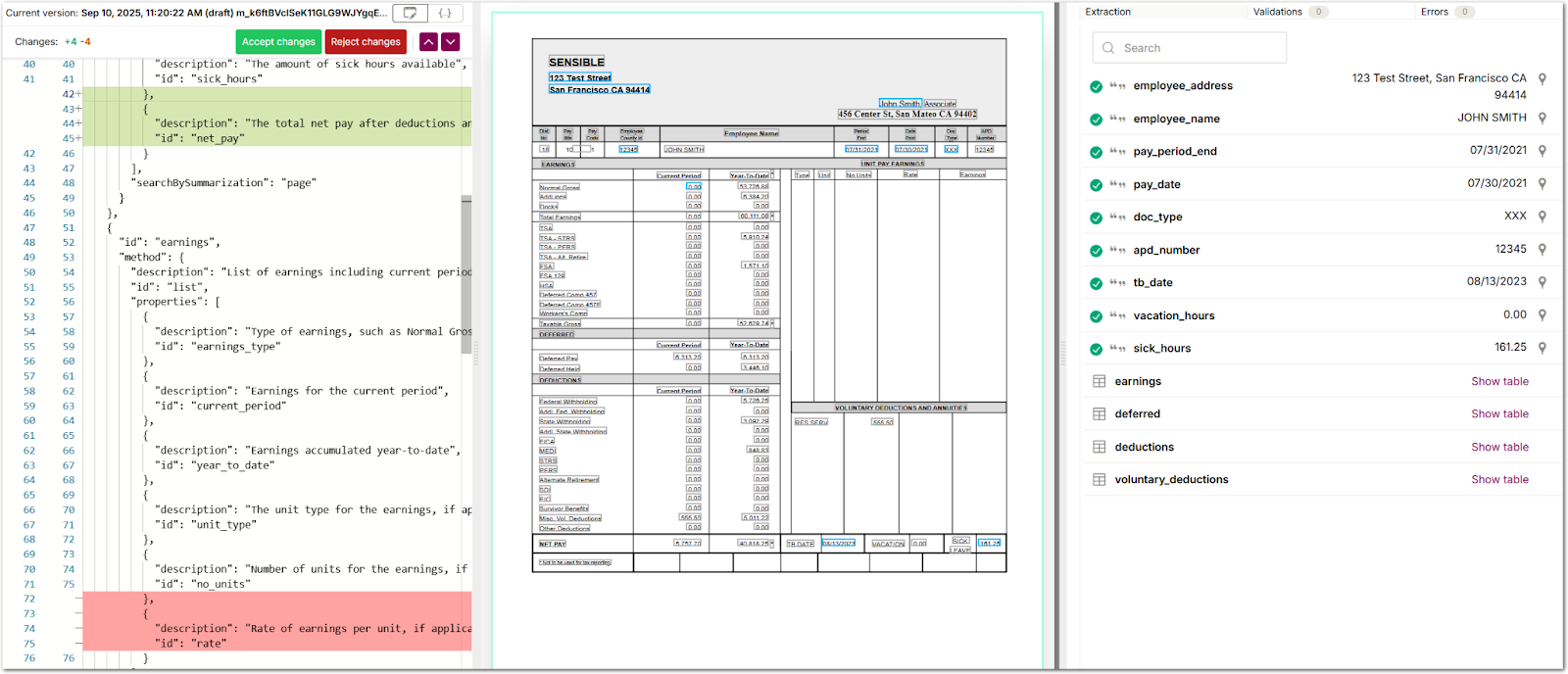
Under the hood, an LLM updates your extraction config based on your prompts, but you still have full control over viewing and accepting its modifications. When you click Send, Sensible automatically creates a diff for the LLM’s planned changes to your extraction configuration. You can then review the JSON diff and accept or reject the changes:
Hands-on edits
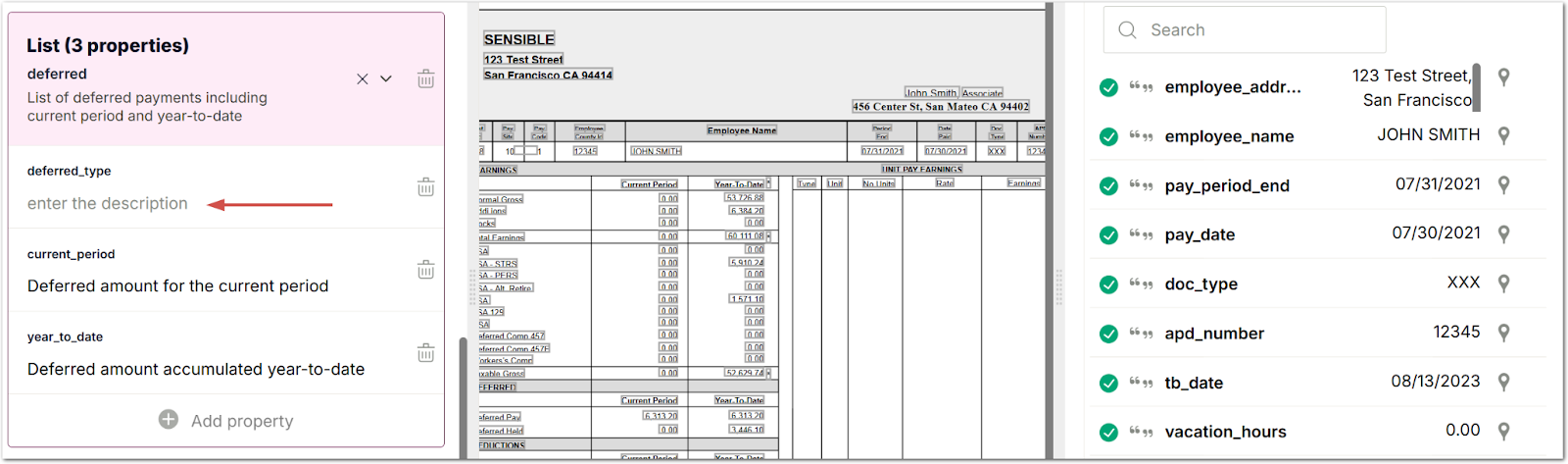
For more direct control, you can manually edit the visual cards without using natural language prompts. You can add or remove extraction fields, or click the Edit icon next to any field to modify prompts:
Ready to experience visual document extraction? Talk to our team to see how these new capabilities can streamline your document processing workflows, or explore our managed services for customized implementation support.
.png)

.png)